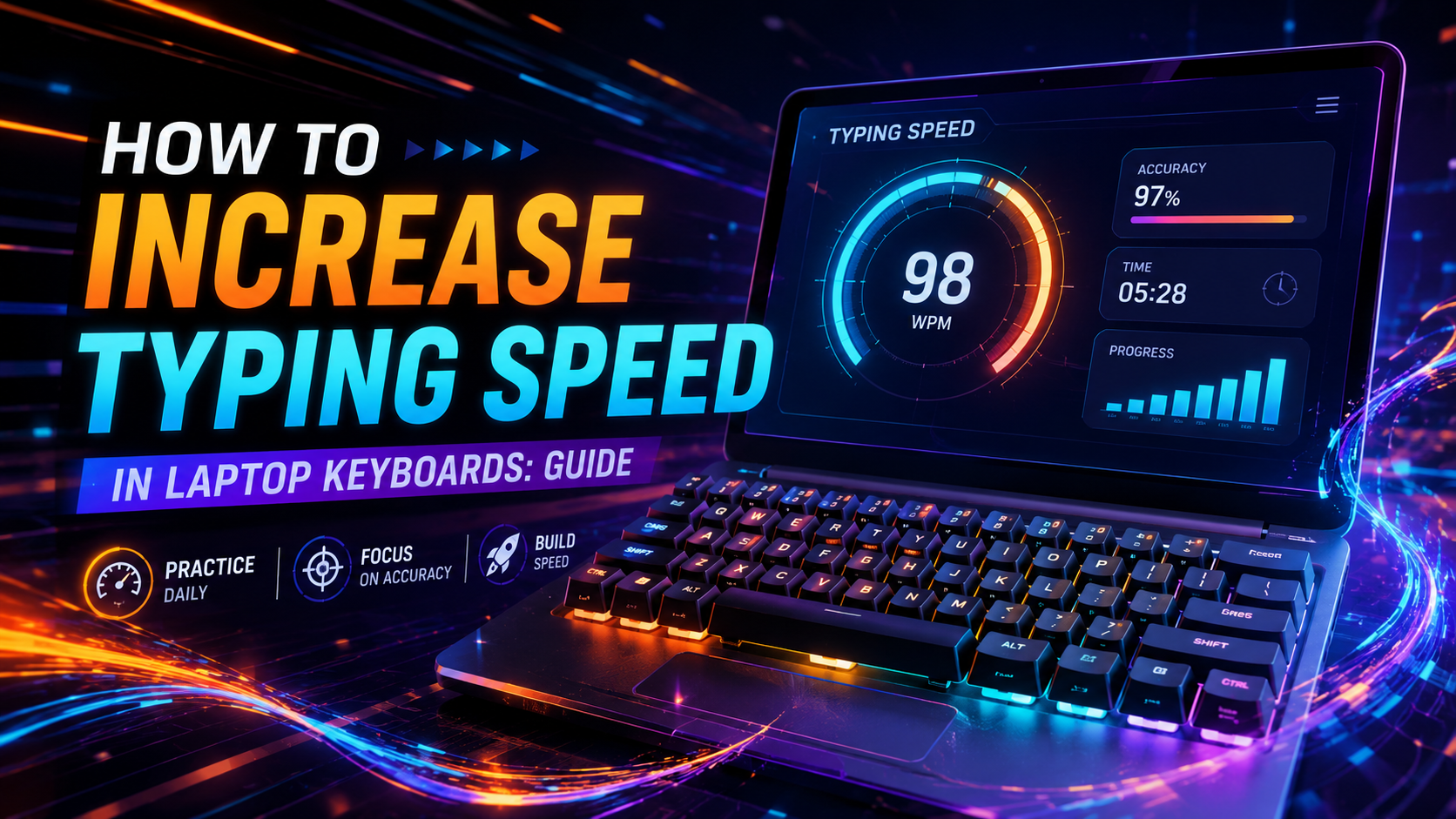
Learning how to increase typing speed on keyboard hardware requires optimizing both biomechanical motor pathways and physical switch mechanics. Most typists reach a plateau between 40 and 55 words per minute (WPM). They stall because they rely on brute-force finger speed rather than refining their keystroke kinematics. Without proper physical anchoring and tactile feedback, moving faster simply compounds error rates and induces forearm strain.
High-performance typing is an exercise in kinetic efficiency. Every millimeter of unnecessary finger travel and every millisecond of switch debounce delay erases your forward momentum. In this comprehensive technical guide, we break down switch actuation profiles, floating wrist mechanics, keycap sculpting, and deliberate neuromuscular routines designed to push your typing baseline beyond 80+ WPM.
Biomechanical Foundations: How to Increase Typing Speed on Keyboard Surfaces
Your hands operate as complex mechanical lever systems. How you position your wrists, forearms, and shoulders directly determines the speed at which your motor cortex can actuate distal finger joints.
The single most destructive physical habit is planting the heels of your palms firmly on the desk while typing. Planting your wrists creates three severe mechanical constraints:
- Ulnar Deviation: Forcing your hands straight while resting on a standard keyboard angles the wrists outward, pinching the ulnar nerve against the carpal ligament.
- Restricted Reach Radius: Anchored wrists force your pinky and index fingers to stretch awkwardly to reach number keys, slowing transit times by up to 200 milliseconds per strike.
- Excessive Tendon Friction: Trapping your forearm tendons under localized desk pressure increases internal friction, leading to premature fatigue and repetitive strain injuries (RSI).
The solution is the Floating Wrist Technique. Keep your forearms parallel to the floor and elevate your wrists roughly half an inch above the keyboard deck. Let your entire arm guide your fingers toward top-row numbers rather than stretching isolated joints.
The tradeoff is clear: floating wrists demand greater shoulder and upper-back stability. During your first week of floating practice, your trapezius muscles may experience mild postural fatigue. This temporary strain passes as your postural endurance develops.
💡 Pro Tip: Adjust your office chair height so your elbows rest at an open angle of 95 to 100 degrees. If your chair is too low, your forearms slope upward, forcing your wrists into acute dorsiflexion that instantly slows finger movement.
Mechanical Switch Physics: Selecting the Right Actuation Profile
The internal mechanics of your switches define your physical feedback loop. Traditional cheap membrane keyboards feature mushy rubber domes requiring 55 to 65 grams of force to bottom out completely. Mechanical switches allow you to register keystrokes halfway through the stroke.
The table below compares the performance trade-offs of modern switch architectures:
| Switch Category Actuation Force Pre-Travel Distance Tactile Feedback Point Typing Speed Trade-off | ||||
| Linear (e.g., Cherry MX Red) | 45 g | 2.0 mm | None (Smooth descent) | Fastest key recovery; prone to resting-finger misstrikes. |
| Speed Linear (e.g., Speed Silver) | 40 g – 45 g | 1.1 mm – 1.2 mm | None (Hair-trigger) | Ultra-rapid actuation; high typo rate during initial adaptation. |
| Tactile (e.g., Gateron Brown) | 50 g – 55 g | 2.0 mm | Noticeable bump at 1.2 mm | Clean feedback prevents bottoming out; slightly slower reset. |
| Hall Effect Magnetic | 35 g – 50 g (Adjustable) | 0.1 mm – 4.0 mm | Firmware-configured | Instant Rapid Trigger reset; higher cost and driver dependency. |
Establish your verified baseline score under your current switch configuration by completing a diagnostic test on the TypingPulse Speed Test.
Keycap Geometry: OEM vs. Cherry vs. Uniform Profiles
Keycap profiles are not purely cosmetic; their geometry defines the physical travel arc of your fingers. Standard keyboards utilize sculpted rows where the keycap angle shifts depending on its distance from the home row.
Sculpted Row Heights (Cherry / OEM Profile):

Row 4 (Numbers):      /---/  (Steep forward tilt minimizes reach distance)
Row 3 (QWERTY):      |---|  (Moderate tilt)
Row 2 (Home Row):    \___/  (Deep central concave dish for homing)
Row 1 (Bottom Row):   \---\  (Angled upward toward thumb plane)
Cylindrical dish keycaps (such as Cherry or OEM profiles) naturally guide finger strikes toward the dead center of the switch stem. In contrast, flat uniform keycaps (such as DSA or XDA profiles) remove vertical row distinction, increasing cross-row finger collisions and lateral typos during high-velocity typing bursts.
Before beginning intense speed routines, verify that your keyboard does not suffer from key chatter or phantom ghosting using our diagnostic Online Keyboard Tester.
"A sculpted keycap profile reduces finger extension distance across the number row by up to 15%. Ergonomic efficiency is measured in cumulative millimeters saved per paragraph."
Neuromuscular Conditioning: Eliminating Inter-Keystroke Hesitation
Understanding how to increase typing speed on keyboard devices requires training your brain to eliminate the pause between consecutive letters. Novice typists display highly erratic inter-keystroke intervals (IKI). They type three letters quickly, pause for 300 milliseconds to scan for the next key, and then burst again.
True speed is built on rhythmic consistency. Follow this four-stage training framework to smooth your execution:
- The Metronome Cadence Drill: Set an online audio metronome to 120 beats per minute. Type common prose passages, striking exactly one key on every beat. Focus purely on cadence rather than raw speed.
- N-Gram Chunking: Train common English bigrams and trigrams (e.g., th, he, in, er, ion) as single muscular reflexes. Your fingers should fire these sequences as coordinated rolling waves.
- Strict 98% Accuracy Threshold: If your accuracy drops below 97%, immediately drop your speed by 10 WPM. High-speed typing with frequent errors trains your motor cortex to store bad habits.
- Punctuation and Shift Layer Drills: Practice passages containing capital letters, quotes, and commas in our Interactive Typing Practice arena to build pinky coordination.
To master advanced finger assignment patterns across alphanumeric rows, follow the progressive curriculum in our Typing Academy Lessons.
💡 Pro Tip: Never press the Shift key with the hand that is typing the active letter. If you need a capital "T", depress the right Shift key with your right pinky while striking "T" with your left index finger. Using the same hand for both keypresses causes severe hand contortion and stalls your typing speed.
The Error Recovery Penalty Curve
Typing speed collapses exponentially the moment an error occurs. A single typo requires halting forward momentum, identifying the incorrect character, striking backspace, and re-entering the correct letter.
This recovery cycle consumes approximately 800 milliseconds of active time. In that same time window, an uninterrupted 80 WPM typist strikes more than five correct characters. Maintaining pristine accuracy is the most effective mechanical shortcut to higher words per minute.
Summary: Engineering Lifelong Keyboard Fluency
Learning how to increase typing speed on keyboard platforms is a structured science of motor control and hardware selection. Eliminate wrist-anchoring friction, select responsive mechanical switches, utilize sculpted keycaps, and enforce an uncompromising 98%+ accuracy standard.
With consistent 15-to-20 minute daily deliberate practice sessions structured around rhythmic cadence and bigram chunking, achieving 75 to 100+ WPM is a predictable, achievable milestone for any dedicated professional.
Frequently Asked Questions
Key answers regarding touch typing, benchmarks, and techniques
Wahab Wahab
Typing & Tech Specialist
Written by typing trainers and keyboard specialists dedicated to helping students and developers achieve touch typing mastery, ergonomic comfort, and competitive WPM speeds.