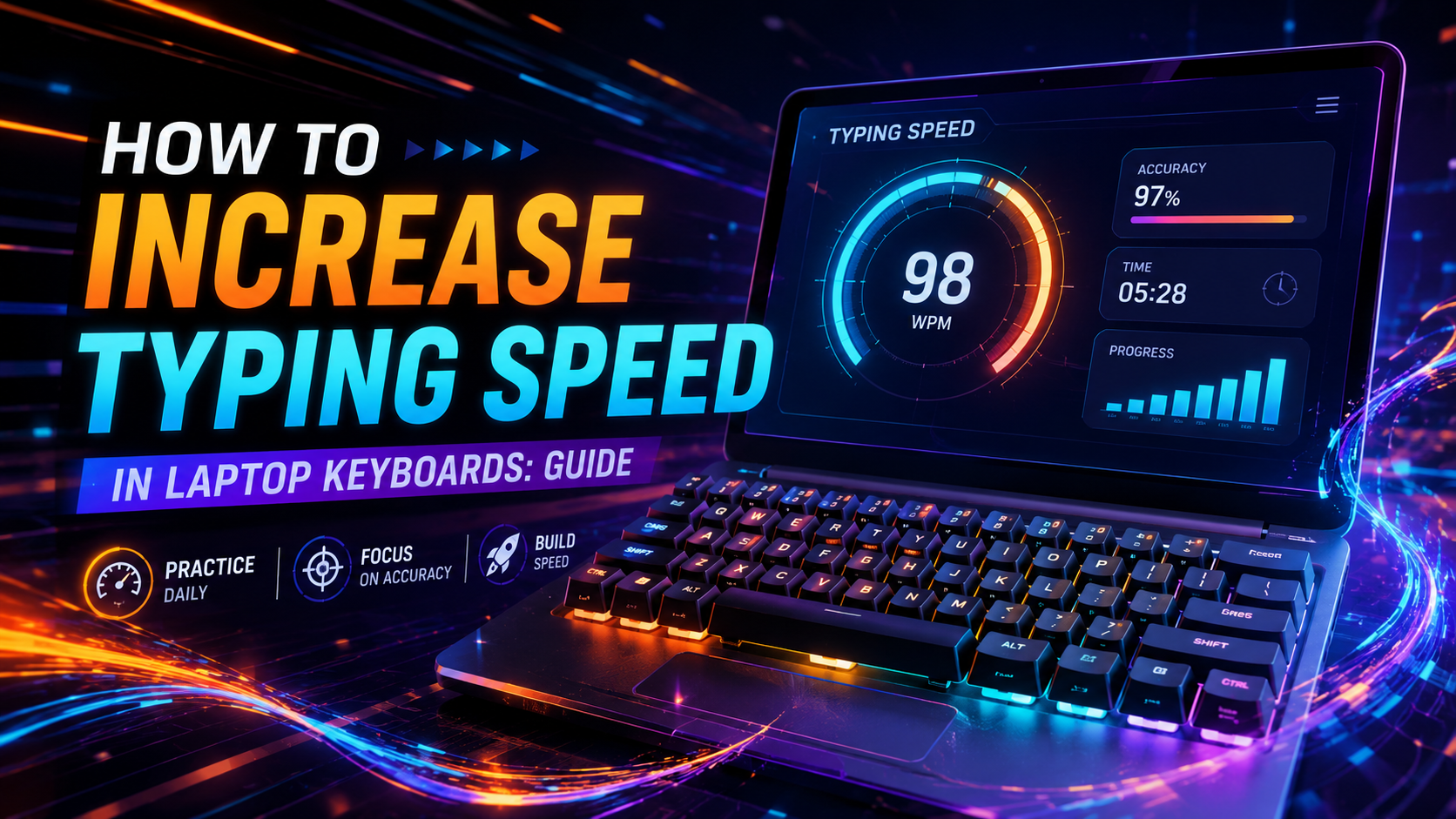
Discovering how to increase typing speed in laptop devices requires adapting your physical technique to low-profile hardware constraints. Standard laptop keyboards operate on scissor-switch mechanisms featuring short 1.0mm to 1.5mm travel depths. While this shallow distance permits rapid finger cycles, the completely flat chiclet keycaps provide minimal tactile boundary cues. Without the sculpted dishes found on standalone mechanical keycaps, your fingers can easily drift off-center.
Typing at high velocity on a portable machine is a balance between feather-light actuation and rigid spatial discipline. If you strike laptop keys with the heavy bottom-out force used on traditional desktop keyboards, you will suffer premature finger joint fatigue and sharp accuracy drops. In this engineering guide, we examine switch kinematics, thermal chassis flex, trackpad palm interference, and ergonomic adjustments designed to maximize your laptop throughput.
Scissor Switch Dynamics: How to Increase Typing Speed in Laptop Setups
Laptop keyboards use an interlocking plastic X-frame scissor mechanism surrounding a central rubber dome. This design stabilizes the keycap during off-center strikes while drastically reducing vertical chassis thickness. Understanding this mechanical architecture reveals why standard heavy-handed typing fails on mobile machines.
The operational characteristics of laptop switches differ sharply from desktop mechanical switches:
| Hardware Property Laptop Scissor Switch Desktop Mechanical Switch Typing Speed Impact | |||
| Total Travel Distance | 1.0 mm – 1.5 mm | 3.5 mm – 4.0 mm | Laptops allow 30% faster physical key return cycles. |
| Actuation Point | 0.8 mm – 1.2 mm | 1.5 mm – 2.0 mm | Laptops register input almost instantaneously upon touch. |
| Keycap Surface Profile | Flat Chiclet / Island | Cylindrical / Spherical Dish | Laptops lack edge boundaries, increasing lateral error rates. |
| Bottom-Out Cushion | Rigid metal backplate | Spring compression stage | Laptops transfer sharp impact shock directly into finger tendons. |
Because the actuation point sits directly above the bottom-out floor, you must train a "gliding" keystroke. Let your fingertips skim across the surface rather than plunging downward. This reduces physical transit time and eliminates the harsh shock of bottoming out against the laptop chassis.
💡 Pro Tip: Calibrate your finger pressure. Practice typing at 70% speed while trying to generate as little acoustic noise as possible from your laptop keycaps. Silence indicates you are utilizing the minimal force required to actuate the switch dome without slamming the backplate.
Overcoming Flat Chiclet Drift and Tactile Homing
The primary barrier to high-speed laptop typing is spatial orientation loss. Traditional keyboards feature concave keycaps that naturally guide your fingertips toward the geometric center of each switch. Laptop chiclet keys are flat slabs separated by 2mm to 3mm plastic borders.
When typing rapidly, your fingers gradually drift away from the home row axis without you noticing until an error appears on screen. To maintain your bearings:
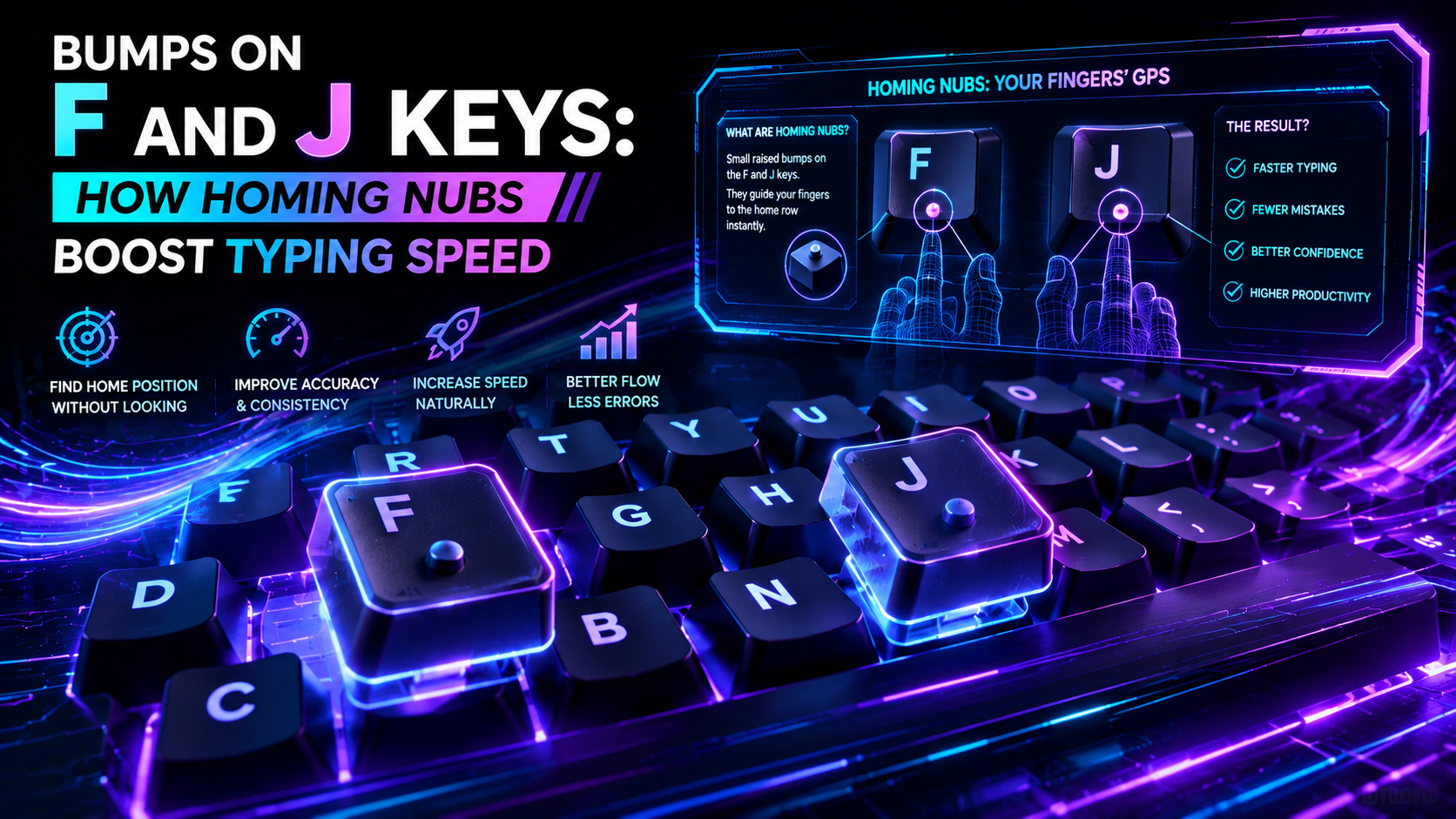
- Re-establish Homing Nubs Continuously: Laptop F and J keys feature tiny raised bars. Keep the pads of your index fingers lightly skimming these ridges during micro-pauses.
- Minimize Vertical Hand Lift: Keep hand elevation low to the deck. Lifting your wrists high removes tactile contact with neighboring keycap edges, forcing your brain to calculate spatial positions blindly.
- Narrow Your Finger Extension Radius: Rotate your elbows slightly inward. This aligns your knuckles parallel to the laptop keyboard rows, preventing your pinky fingers from over-reaching for Enter and Backspace.
Before beginning speed drills, test your laptop keyboard for unregistered key combinations or ghosting using our Online Keyboard Tester. Many compact laptop matrices share internal traces that drop simultaneous inputs during high-speed burst sequences.
The Ergonomic Tradeoff: How to Increase Typing Speed in Laptop Daily Workflows
Laptops present an inherent biomechanical conflict: the screen and keyboard are physically fused together. When the keyboard sits at the correct height for your forearms (elbows bent at 90 degrees), the display is far too low, forcing severe cervical spine flexion (neck bending). When the display is elevated to eye level, your wrists are forced into sharp upward dorsiflexion, compressing the carpal tunnel.
Laptop Ergonomic Paradox:
1. Keyboard at Desk Level  --> Wrists Neutral, BUT Severe Neck Strain (45° Flexion)
2. Laptop on Riser Stand  --> Neck Neutral,  BUT Severe Wrist Strain (>30° Extension)
--------------------------------------------------------------------------------
Engineering Solution:        Elevate Laptop on Riser + Deploy Low-Profile External Input
If you must type directly on the laptop chassis while traveling, follow these positional adjustments to prevent motor slowdown:
- Push the Laptop Back: Place the machine 6 to 8 inches further away from the desk edge than usual. This opens your elbow angle and allows your forearms to rest lightly along the desk surface rather than hovering rigidly in the air.
- Avoid Tilting Feet: Do not prop the rear of the laptop up on high kickstands if typing directly on its deck. Raising the rear increases wrist extension angles, compressing finger flexor tendons.
- Manage Thermal Deck Heat: High-performance laptops generate considerable heat beneath the palm rests. Elevated skin temperatures induce sweating, which increases friction between fingertips and smooth ABS keycaps, stalling finger glide.
"You cannot separate input speed from posture. Biomechanical strain in the neck and shoulders radiates downward, restricting fine motor dexterity in the distal finger joints."
Eliminating Trackpad Interference and Palm Rejection Errors
Modern laptops feature massive glass trackpads positioned directly below the spacebar. When executing fast typing patterns, the thenar and hypothenar eminences (the meaty base of your thumbs and palms) inevitably brush against the touchpad surface.
A single accidental palm strike can move the text cursor into the middle of a previous paragraph, completely derailing your forward momentum. To eliminate this bottleneck:
- Increase Palm Rejection Aggressiveness: In Windows 11 Touchpad settings, adjust touchpad sensitivity to "Low Sensitivity" or enable "Delay taps while typing". On macOS, verify that "Ignore accidental trackpad input" is enabled.
- Disable Tap-to-Click During Drills: Require a physical click to register mouse actions while running intensive typing tests. This prevents light palm brushes from repositioning the cursor.
- Hover the Palms: Avoid resting the heel of your hands heavily on the chassis corners. Floating your palms gives your fingers full three-dimensional agility to strike top-row numbers cleanly.
Assess your current baseline under low-profile conditions by taking a three-minute test on the TypingPulse Speed Test.
Tailored Deliberate Practice for Low-Profile Keyboards
Practicing on a laptop requires specific drills focused on light actuation and rapid horizontal finger movement. Because scissor switches feature minimal travel, your training priority is eliminating dwell time (the duration a key remains held down after actuation).
💡 Pro Tip: Laptop keys reset almost instantly upon upward release. Practice releasing keys the fraction of a millisecond they click. Shortening your key release latency immediately boosts your raw characters-per-minute (CPM) metrics.
Execute this 20-minute daily laptop training routine:
- Home Row Gliding (5 Minutes): Run repetitive drills focusing strictly on ASDF and JKL; keys. Focus on gliding from key to key without lifting fingers more than 3mm above the keycaps.
- Number and Symbol Row Reach (5 Minutes): Practice stretching fingers upward to the number row while keeping thumb anchors grounded. Flat keycaps make top-row targeting difficult without visual checks.
- High-Frequency Word Bursts (5 Minutes): Type 100-word sprints focusing purely on cadence. Maintain a strict 98% accuracy standard in our Interactive Typing Practice arena.
- Real-World Prose Testing (5 Minutes): Work through punctuated paragraphs containing capitalization and quotes to train shift-key pinky coordination.
To master structured finger assignment rules for compact laptop layouts, follow the progressive lessons in our Typing Academy Lessons.
Summary: Mastering the Low-Profile Advantage
Understanding how to increase typing speed in laptop environments transforms hardware limitations into competitive advantages. The short travel of scissor switches allows for exceptionally fast keystroke cycling once you eliminate heavy bottom-out force and conquer flat keycap drift.
Maintain floating wrists, disable trackpad tap-interference, keep your fingers close to the keycap decks, and enforce strict 98%+ accuracy standards during daily drills. Consistent practice will quickly bring your laptop typing speed in line with your desktop performance.
Frequently Asked Questions
Key answers regarding touch typing, benchmarks, and techniques
Wahab Wahab
Typing & Tech Specialist
Written by typing trainers and keyboard specialists dedicated to helping students and developers achieve touch typing mastery, ergonomic comfort, and competitive WPM speeds.